Ever found yourself frantically searching for a charger while your iPhone teeters on the edge of battery death? You’re not alone. Many iPhone users face the mystery of rapid battery drain, leaving them wondering if their phone’s trying to send them a not-so-subtle hint to unplug from the digital world.
From pesky background apps to sneaky location services, there are countless culprits behind that dwindling battery life. But fear not! Understanding why your phone’s battery is draining faster than your motivation on a Monday morning is the first step toward reclaiming your power. Dive in to uncover the secrets behind your iPhone’s battery woes and how to keep it charged longer.
Understanding Battery Drain
Rapid battery drain affects many iPhone users. Understanding the underlying causes allows for better management and optimization.
Common Reasons for Battery Drain
Multiple factors contribute to excessive battery consumption. Background apps often use power, even when not in use. Location services continuously running can significantly affect battery life, especially in applications that track movements. Notifications from various apps keep the screen activated, which leads to faster drainage. Other elements include high screen brightness and using resource-intensive applications such as games. Observing these factors can help users identify which may be responsible for their battery issues.
Importance of Battery Health
Maintaining battery health is crucial for maximizing performance. Apple’s battery health feature displays the maximum capacity and provides insights into battery longevity. A lower percentage indicates potential degradation, affecting daily use. Understanding this metric guides users in making informed decisions about battery management and replacements. Regular monitoring helps users take proactive measures to preserve battery life and avoid sudden shutdowns. Awareness of battery health ensures longevity and efficiency in daily operations.
Identifying Battery Usage
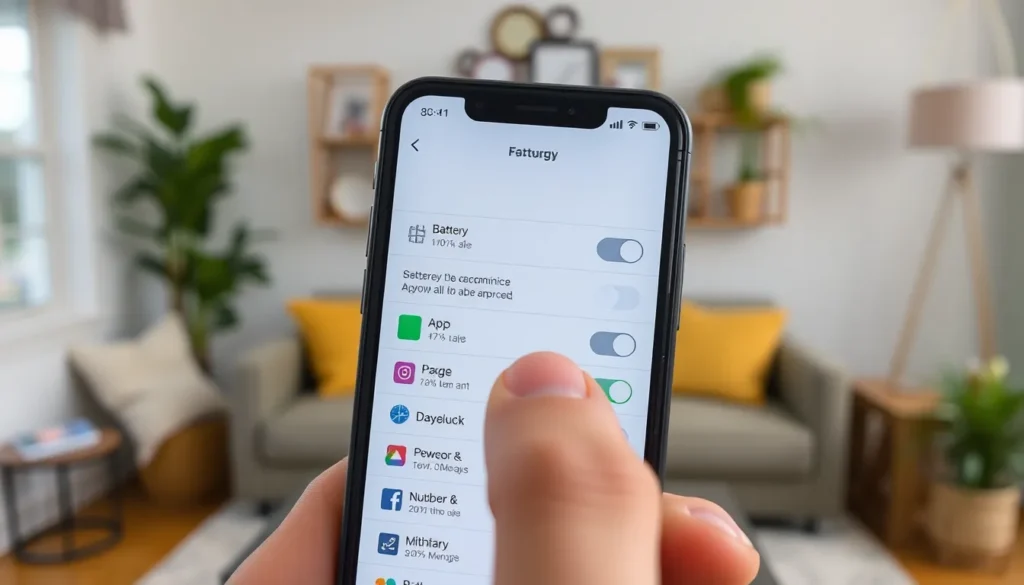
Identifying battery usage on an iPhone plays a crucial role in understanding rapid power drain. Users can pinpoint specific causes of battery depletion by accessing the relevant settings.
Checking Battery Settings
Battery settings provide essential data on consumption levels. To view battery usage, navigate to Settings, then select Battery. This section displays a breakdown of percentage consumption per app over the past 24 hours or the last 10 days. Prioritize examining high-consumption apps first for immediate insights. Configuring the battery optimization options available for each app empowers users to limit unnecessary consumption. Enabling Low Power Mode can temporarily reduce background activity, extending battery life.
Understanding App Impact
App impact significantly affects battery drain. Resource-intensive apps such as games and video streaming services consume more power. Recent activities also influence this aspect; apps running in the background without current use still drain battery life. Notifications, particularly frequent alerts and location tracking, lead to increased screen activation, further depleting battery levels. Users can manage app permissions to control location access and background activity, reducing unnecessary energy use. Identifying less essential apps offers opportunities for modification, ultimately preserving battery life.
Tips to Improve Battery Life
Making small adjustments can significantly enhance iPhone battery life. Various settings can help reduce power consumption while maintaining functionality.
Adjusting Settings
Adjusting settings plays a critical role in battery preservation. Enabling Low Power Mode temporarily restricts background activity and reduces visual effects. Reducing screen brightness decreases power usage, and setting the screen to auto-dim during inactivity helps conserve energy. Disabling unnecessary notifications prevents the screen from waking up frequently. Modifying location services can also save battery; setting apps to “While Using” instead of “Always” limits their access to GPS. Regularly checking system updates ensures optimal performance and compatibility, leading to better battery management.
Reducing App Background Activity
Reducing app background activity is crucial for extending battery life. Users can navigate to Battery settings to identify apps that consume excessive power. Limiting background app refresh for less essential applications cuts down unnecessary energy usage. Users should also turn off location services for specific apps when not needed. Managing notifications effectively allows users to receive essential updates without draining battery life. Pausing or uninstalling resource-intensive apps like large games or streaming services frees up energy for more critical functions.
When to Seek Professional Help
Recognizing when to seek professional help can be crucial for resolving battery issues effectively. Sudden performance drops and recurring shutdowns often indicate underlying problems.
Signs of a Failing Battery
Common signs of a failing battery include rapid battery drain, overheating during use, or swollen battery casing. Users may notice that their phone only holds a charge for a short time, even after a full charge. Unexpected shutdowns even when battery percentage appears adequate suggest severe deterioration. Compatibility issues often arise when older models struggle with newer software updates, leading to performance inconsistencies. Addressing these symptoms promptly prevents further complications and extends device longevity.
Apple Support Options
Apple provides various support options for battery-related concerns. Users can schedule appointments at the Genius Bar to discuss battery health with trained technicians. Online support through Apple’s official website offers troubleshooting guides tailored for specific battery issues. Apple also provides mail-in repair services for users unable to visit a store. Consider utilizing the Apple Support app for immediate access to battery diagnostics and service options. Exploring these resources ensures users receive reliable assistance and potential repair solutions.
Addressing rapid battery drain on an iPhone is essential for a seamless user experience. By understanding the factors that contribute to battery consumption and implementing practical adjustments users can significantly enhance their device’s longevity. Regularly monitoring battery health and adjusting settings like screen brightness and background activity plays a vital role in optimizing performance.
For those facing persistent issues or signs of battery failure seeking professional assistance can provide further insights and solutions. With the right approach users can enjoy their iPhone without the constant worry of running out of power.