Imagine this: you’re ready to conquer the day, but your iPhone has decided to play the ultimate game of hide-and-seek. It won’t turn on or charge, leaving you feeling like you’ve just lost your best friend. This frustrating scenario can turn even the most patient person into a tech detective, scouring the internet for answers.
Don’t worry, you’re not alone in this digital dilemma. Many iPhone users find themselves in the same boat, desperately trying to revive their lifeline to the world. Whether it’s a stubborn battery or a sneaky software glitch, uncovering the mystery behind a non-responsive iPhone can save you from unnecessary panic and a trip to the nearest Apple store. Let’s dive into the possible reasons your iPhone is playing dead and how to breathe life back into it.
Common Reasons Why Your iPhone Is Not Turning On or Charging
Several factors contribute to an iPhone’s failure to turn on or charge. Identifying these issues can simplify troubleshooting and restore functionality.
Battery Issues
Batteries can lose charge over time, reducing their ability to power the device. A completely drained battery may not show signs of life until recharged for a few minutes. Additionally, old batteries might need replacement; Apple recommends replacing batteries once they reach around 80% capacity. Users should observe signs like sudden shutdowns or poor battery life. Such symptoms often indicate the battery’s declining health.
Charging Port Problems
Charging ports can accumulate dirt and lint, obstructing connections. Inspecting the port for debris is crucial; small particles can prevent chargers from making contact. A damaged lightning cable also causes charging issues; using a certified cable ensures compatibility. A snug fit is essential, and loose connections can lead to failed attempts to charge the device. Trying a different cable or charger may help identify if the port is at fault.
Software Glitches
Unexpected software glitches can render an iPhone unresponsive. A forced restart often resolves minor issues, refreshing the device’s operating system. Outdated software can cause compatibility problems; keeping the iPhone updated allows access to important fixes. Users may experience app conflicts, especially after updates; checking for problematic apps can provide insights. If necessary, restoring the device through iTunes may address persistent software issues.
Troubleshooting Steps to Try
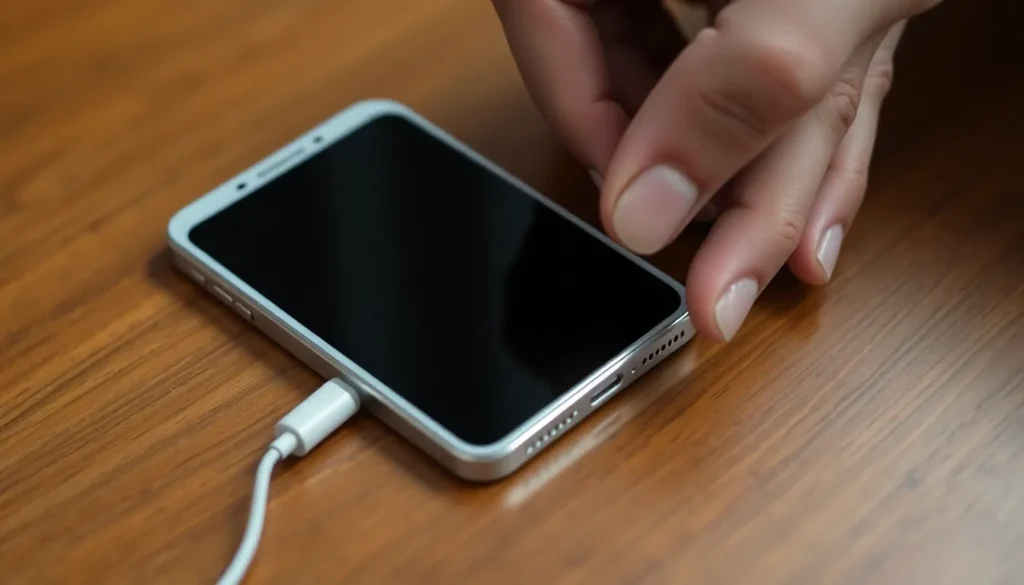
Follow these steps to diagnose why the iPhone is unresponsive and not charging. Each method targets common issues, allowing users to effectively troubleshoot.
Force Restart Your iPhone
A force restart often resolves software-related issues. Press and quickly release the Volume Up button, then the Volume Down button. Subsequently, press and hold the Side button until the Apple logo appears. This method refreshes the device, potentially restoring functionality. Many users find this step helpful when the screen remains black. Consistent application of this technique can tackle minor glitches efficiently.
Inspect the Charging Cable and Adapter
Check the charging cable for signs of damage, such as frays or exposed wires. A faulty cable can prevent charging altogether. Connect the cable to a different adapter or try a different outlet to rule out adapter problems. Ensure both the cable and adapter are Apple-certified for reliable performance. Inspect the ends of the cable for lint or debris, which can impede the connection. Users often overlook these simple checks, yet they yield significant results.
When to Seek Professional Help
Inevitably, some issues require expert assistance. Observing specific signs may indicate a hardware failure, and contacting Apple Support often leads to a solution.
Identifying Hardware Failures
Identifying hardware problems becomes essential when simple troubleshooting doesn’t resolve the issue. Signs of hardware failure may include the device making unusual noises or showing physical damage. Users might notice their iPhone unexpectedly shutting down despite having a charged battery. Additionally, the screen may remain black even after attempting a force restart. If these symptoms appear, seeking professional repair services is prudent, as unauthorized fixes can worsen the condition or void warranties.
Contacting Apple Support
Contacting Apple Support proves beneficial when troubleshooting efforts yield no results. Customers can reach out through the official website, chat options, or by visiting a local Apple Store. Apple technicians provide tailored support, often possessing insights into common problems specific to certain models. Users should gather their device information before calling, such as the model and serial number. This preparation helps expedite the support process, allowing for quicker diagnostics and potential repairs.
Preventive Measures
Taking steps to prevent issues with an iPhone not turning on or charging can save users from future frustrations. Regular maintenance and proper charging techniques play critical roles in prolonging device life.
Regular Maintenance Tips
Maintaining an iPhone’s condition is essential for its longevity. Users should clean the charging port with a soft brush or compressed air to remove dirt and debris. Inspecting the battery health periodically can reveal potential concerns before they escalate. Updating the software consistently ensures the device runs on the most stable version, minimizing glitches. Checking for physical damage, such as cracks and dents, can prevent problems related to hardware malfunctions. Users can also store their iPhone in a protective case to guard against physical impacts.
Best Charging Practices
Employing effective charging practices contributes to battery health. Utilizing an Apple-certified cable prevents compatibility issues and maintains optimal charging efficiency. Charging the device in a cool, dry environment helps avoid overheating, which can damage internal components. It’s beneficial not to let the battery drain completely on a regular basis; this habit can diminish battery performance over time. Leaving the iPhone plugged in overnight occasionally isn’t harmful, but regular overcharging should be avoided. Keeping the charging port clean and inspecting cables for frays or breaks also ensures a reliable connection.
Facing an unresponsive iPhone can be frustrating but understanding the potential causes and solutions can make a significant difference. By following the troubleshooting steps outlined in the article users can often revive their devices without the need for professional help.
Regular maintenance and best charging practices are key to preventing future issues. Keeping the charging port clean and monitoring battery health can extend the life of the device.
If problems persist despite these efforts seeking professional assistance is a wise choice. With the right approach users can ensure their iPhones remain reliable and functional.